Here is an unglamorous truth about staying organized: the best to-do list app is the one you actually open. Not the one with the longest feature list, not the one a productivity video recommended — the one your thumb drifts to without thinking. And you open an app more often when you like being inside it.
That is why personalization isn't vanity. A list you designed yourself — your colors, your font, maybe your own photo sitting quietly behind your tasks — feels like your space instead of borrowed software. You shaped it, so you come back to it. The pretty word for that is aesthetic; the more useful one is habit trigger.
My Tasks: Lists & Schedules is a free to-do list app built around exactly this idea. Underneath, it does the serious work: tasks with reminders, recurring schedules and subtasks, rich-text notes, checklists and a calendar. On top sits one of the deepest theming systems in the category — unlimited custom themes, your own color palettes, Google Fonts, background images with opacity control, true black modes. The entire customization layer is free.
Why an aesthetic to-do list app keeps you organized
Let's keep this part honest, because "aesthetic productivity" content often isn't: no study proves a coral color scheme makes you 34% more productive. The real case rests on two plain observations.
Friction decides phone habits. The apps you use daily win by tiny margins — a shortcut here, a pleasant screen there. If opening your task list gives you even a small "this is nice" moment, you check it more, trust it more, and stop keeping half your plans in your head. An app that feels like a spreadsheet from 2011 loses those margins one skipped glance at a time.
Ownership builds routines. People maintain what they made. It is the same reason a paper journal you decorated gets filled while a plain one gathers dust: the effort you put into a thing becomes a quiet reason to keep using it. Building a theme takes five minutes, and those five minutes turn "some app" into my list.
One caveat belongs here: a beautiful list is still just a list. Colors get you to open the app; what you write in it is what keeps you organized. Our guide on how to make a to-do list you'll stick to covers that half of the equation.
Make your to-do list look like yours
Unlimited themes, custom fonts and backgrounds — on top of tasks, notes, checklists and a calendar. Free on Android and iPhone.
Free · 4.8★ · 120K+ downloadsWhat you can customize in My Tasks
In most task apps, "personalization" means a dark mode toggle and — if you pay — ten accent colors. A genuinely customizable to-do list app goes further. Here is what you can change in My Tasks:
- Unlimited custom themes. Build your own palette — primary color, font color and background color — and save it as a theme. There is no cap: make one for winter, one for exam season, one per mood. Saved themes live in your library inside the app, and switching takes two taps.
- Custom fonts. Choose from a wide selection of Google Fonts — crisp sans-serifs that keep dense task lists readable, or handwriting-style fonts that make notes feel like a paper journal.
- Background images with opacity control. Set any image as your background — a photo, a texture, a soft gradient — then dial the opacity until your tasks sit comfortably on top of it.
- App bar style. Even the bar at the top of each screen is adjustable, so the frame matches your theme instead of fighting it.
- Full dark and true black themes. Because you pick the exact background color, dark mode can mean soft charcoal or pure black for OLED screens — paired with any accent you like.
Two details are worth underlining. First, all of this is free: themes, fonts, backgrounds and the theme library are core features, not a paid tier. Premium exists, but it covers different ground — cloud backup, sharing lists with other people, drawing notes. Second, your themes are stored on your device, and the whole app works offline with no account, so the setup you build never depends on a server or a sign-in.
Real themes, not mockups
Screenshots in this category are often mockups: designed once for the store listing, impossible to reproduce in the actual app. So it is worth saying plainly — every screenshot below is a real theme built inside My Tasks with the same tools you get on day one.
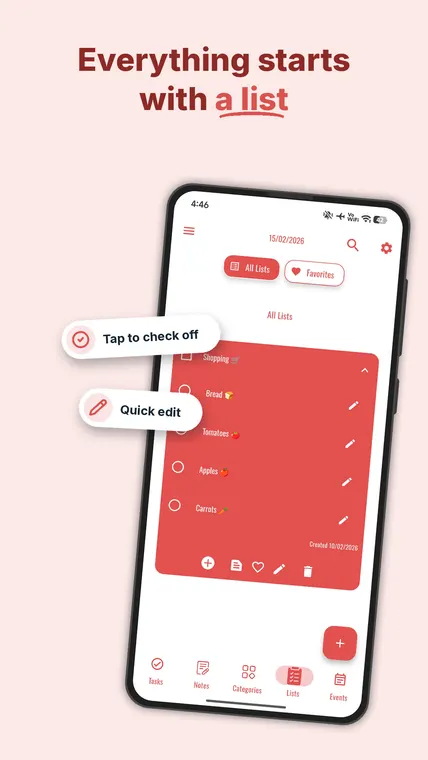
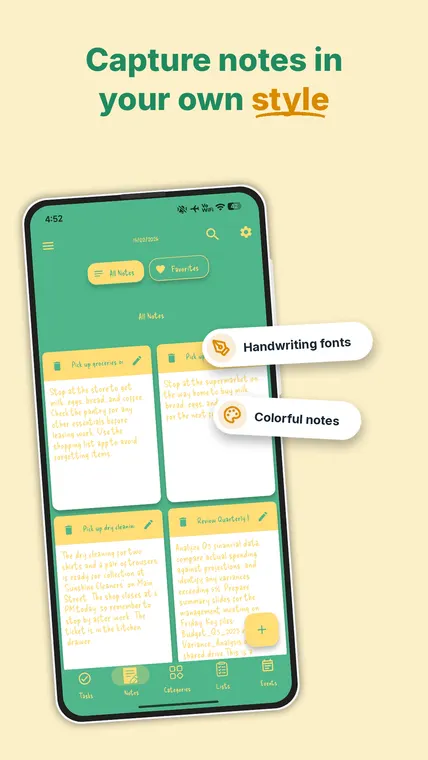
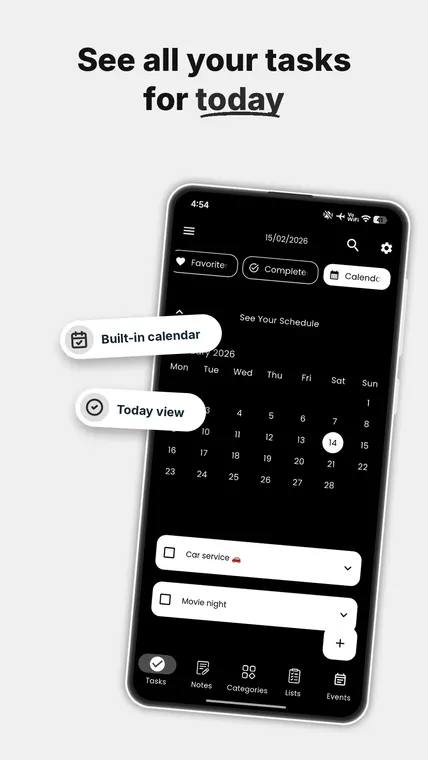
Three very different moods, one app — and that range is the point. The coral theme and the black theme are not "light and dark variants" of one design; they are separate themes someone assembled by picking their own colors. You can recreate any of them, or make something entirely new, in My Tasks on Google Play or the App Store.
Create your own theme in 4 steps
Building a theme takes a few minutes the first time and seconds once you have done it twice:
- Open the theme settings. In the app's settings, head to Themes. You will see the built-in options plus every theme you have created so far.
- Pick your three colors. Choose a primary color (buttons, accents, highlights), a font color and a background color. Contrast matters more than beauty here — dark text on a light background or the reverse.
- Add character. Select a font — a clean sans-serif for dense lists, or a handwriting style if you want your notes to feel personal — and, if you like, a background image with the opacity pulled down so text stays readable.
- Save and switch. Save the theme and it joins your library. From then on you can jump between saved themes whenever the mood shifts, without rebuilding anything.
And if you would rather describe a look than assemble it: the optional AI assistant — a premium feature — can generate a complete color theme from a short text prompt. Type "quiet library in autumn" and it proposes a matching palette you can apply as-is or tweak color by color. It is a pleasant shortcut, but only a shortcut: manual theming is free and always fully in your hands.
Customization vs clutter: keeping it usable
A gentle warning from someone who has watched people theme themselves into a corner: the goal is a list you can read at a glance, not a screen that wins design awards. A few honest tips:
- Contrast beats color. Whatever palette you love, your font color needs to stand clearly off the background — if you squint and the text blurs away, tasks will get missed.
- One accent is plenty. Let the primary color do the highlighting and keep everything else calm. Three competing brights turn a list into a carnival.
- Save handwriting fonts for notes. They are lovely for journals and ideas, but a dense task list reads faster in a simple sans-serif.
- Keep backgrounds quiet. A photo at low opacity adds personality without stealing attention. At full strength it competes with your own to-dos.
- Let a theme live for a while. Part of the habit value is recognition — your list should look like your list. Rebuild monthly, not hourly.
And if part of your planning happens on paper — plenty of organized people mix both — our free printable planner templates give you the same made-by-you feeling away from the screen.
Unlimited themes, zero cost
Your colors, your fonts, your backgrounds — plus tasks, reminders, notes, checklists and a calendar underneath. Download My Tasks and build a list you like looking at.
Free · 4.8★ · 120K+ downloadsFAQ: free theming, photo backgrounds, black themes and AI
Is theming free?
Yes. Custom themes, colors, fonts, background images and the theme library are all part of the free app — you can build and switch between as many themes as you like without paying. Premium covers different ground, such as cloud backup, task sharing and drawing notes; none of the core customization sits behind a paywall.
Can I use my own photo as a background?
Yes. You can set your own image as the app background and then adjust its opacity so your tasks stay readable on top of it. Paired with a matching font color and primary color, a personal photo becomes a theme of its own — and it saves to your theme library like any other, so you can switch back anytime.
Does it have a true dark or black theme?
Yes. Because you choose the exact background color, dark mode can mean anything from soft charcoal to pure black for OLED screens. The black minimalist theme in the screenshots above is a real in-app theme, and dark setups work with any font and accent color you pick.
Can AI make a theme for me?
Yes, if you want it to. The optional AI assistant, a premium feature, can generate a complete color theme from a plain-text description like 'calm forest morning' or 'retro terminal'. You can apply the result as-is, tweak any color it chose, or skip AI entirely and build every theme by hand — manual theming is free.