You install a to-do app because your head is full and you want the thoughts out of it. Then, before you can type a single word, the app stops you: Sign up with email. Continue with Google. Accept the terms, verify your address, choose a password. Somewhere between your brain and an empty list, "buy milk" acquired a login.
If that moment makes you close the app, this page is for you. Some people simply don't want another company holding a copy of their daily life. Some live with genuinely unreliable connections — tunnels on the commute, flights, one bar of signal in the village, roaming data they'd rather not pay for. And some just want the digital equivalent of a notepad: open, write, done.
My Tasks: Lists & Schedules was built local-first for exactly these people. There is no sign-up wall — you install it, open it, and create your first task in seconds. Everything lives on your phone, the app is fully functional with no internet at all, and an account only enters the picture if you choose optional cloud extras. The rest of this page explains how that works, and where the honest limits are.
Why most to-do apps force an account
To be fair to other apps: hardly anyone demands an account out of malice. It usually comes down to three overlapping reasons.
The first is architecture. Many task managers are built cloud-first — the authoritative copy of your list lives in the company's database, and the app on your phone is essentially a window onto their server. In that design an account isn't a feature, it's a prerequisite: without an ID to attach your data to, the system has nowhere to put your tasks. For team tools, where five people need to see the same board update in real time, that's the right call.
The second is business. An email address captured at sign-up is the start of a marketing channel — onboarding sequences, upgrade nudges, win-back emails when you stop opening the app. None of that works on an anonymous user.
The third is retention. An account raises the cost of leaving: your data sits on their servers, in their format, behind their login. None of these three reasons has anything to do with you writing better lists — and for a personal list of groceries, errands and reminders, the cloud-first design mostly adds friction. If the app you're trying to escape is the best-known one, we've written a separate guide to an app like Todoist that's completely free.
What "offline-first" actually means
"Works offline" on a store listing can mean two very different things, and it's worth knowing which one you're getting.
The weak version is a cache. The app keeps a temporary copy of your data so it doesn't break in a tunnel, but the server remains the source of truth. Stay offline too long, or sign out, and things get strange — stale lists, sync conflicts, buttons that grey out.
The strong version — offline-first, sometimes called local-first — flips the relationship. Your data is written to a real database on your phone. In My Tasks that's an SQLite database stored on the device itself, the same battle-tested engine the phone's built-in apps use. The app reads and writes locally, always, and that has consequences you can feel:
- Airplane mode is a non-event. Create, edit, complete and reorganize tasks with no connection — forever, not for a grace period. The database is right there on the device.
- Nothing spins. Opening the app or ticking off a task never waits on a network round-trip, so it's instant on an old phone in a basement, not just on Wi-Fi.
- Reminders still fire. Notifications are scheduled with your phone's operating system, not pushed from a server.
- The cloud is a layer, not a foundation. Backup and sharing are optional extras that sit on top. Declining them takes nothing away from the app underneath.
Skip the sign-up — start your list now
Install My Tasks, open it, and write your first task in seconds. No account, no email, and it keeps working with your internet off.
Free · No account needed · Android & iPhoneMy Tasks with no account: what you get
Here is the entire onboarding: install from Google Play or the App Store, open the free to-do list app, tap the plus button, type. Nobody asks your name.
And the no-account tier isn't a demo with the good parts held back. Without ever signing in, you get:
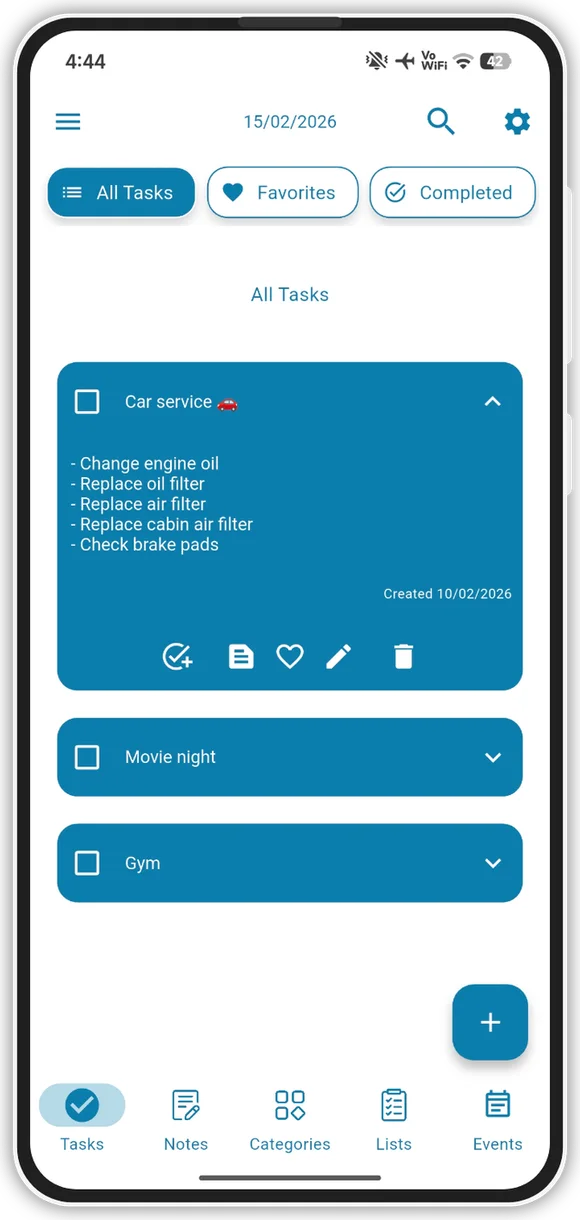
- Unlimited tasks with due dates, times and reminders — no caps designed to push you toward a subscription.
- Recurring tasks for the things that repeat: daily medication, weekly bins, monthly bills.
- Subtasks (steps), so "plan the trip" can carry its own checklist of smaller moves.
- Notes with rich text — headings, formatting, structure — for everything that isn't quite a task.
- Checklists for groceries, packing and errands, kept separate from your task list.
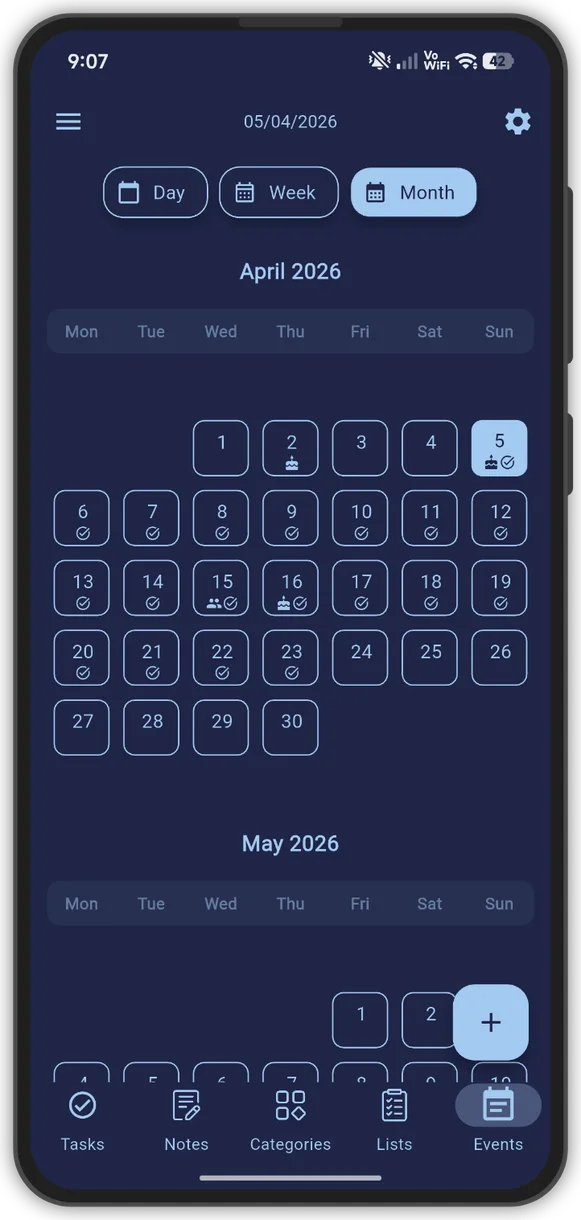
- A calendar view and events, so appointments and deadlines sit next to your tasks instead of in another app.
- Categories to keep work, home and personal from bleeding into each other.
- Themes — colors, fonts, backgrounds — including the dark calendar you can see below.
- Five Android home-screen widgets, so today's list is visible without opening anything.
- A biometric app lock, so the list on your phone stays behind your fingerprint.
My Tasks has 120,000+ downloads and a 4.8-star rating on Google Play, runs on Android 8 or newer, and is also available for iPhone. If you want to see how it stacks up against the rest of the category, our round-up of free to-do list apps with no subscription compares the honest options side by side.
When you WOULD want an account
A page like this owes you the other side, because keeping data only on your phone has one real cost: your phone is now the single copy.
If the phone is lost, stolen or simply dies, and you never made a backup, your tasks go with it. There is no server copy to recover — precisely because nothing was ever uploaded. That's the trade: privacy and independence, in exchange for responsibility.
So there are three situations where signing in (email or Google, under a minute) is genuinely worth it:
- Backup against phone loss. The premium cloud backup keeps a copy of your tasks, notes and lists in the cloud, so a new phone is one sign-in away from having everything back.
- A second device. Without an account, a phone and a tablet are two separate islands. With cloud backup they see the same data — including across Android and iPhone.
- Shared lists. A grocery list you share with a partner has to travel between two phones, which requires a server and a sign-in on both ends. In My Tasks, shared to-do lists and collaboration are premium features.
If you decide to stay account-free, borrow one habit from people who've done it for years: keep anything truly irreplaceable in more than one place. Long-term reference information can live in a second app or on paper — and if you like a paper fallback for weekly planning, our free printable planner templates exist for exactly that.
Privacy: what no-account means for your data
"No account required" has a quiet privacy consequence that's easy to miss: an app that never asks who you are cannot tie your to-do list to your email address, because it never has one.
Used without an account, My Tasks keeps your tasks, notes and checklists in its local database on your device, and they aren't uploaded as part of normal use. Cloud backup only comes into play when you deliberately switch it on; until then, there is no copy of your list sitting on a server. Like most apps it uses standard crash reporting to keep things stable — the privacy policy spells out the details plainly — but the list itself stays on your phone.
There's also the more ordinary risk that no cloud policy addresses: someone picking up your unlocked phone. For that, My Tasks includes a biometric lock — require your fingerprint or face before the app opens. Like everything else on this page, it works entirely on-device.
None of this needs to be a grand promise, and you should be wary of apps that make one. It's simpler than that: data that never travels is data that can't be intercepted on the way. You can see the full picture of what the app does on the My Tasks homepage.
Your list, on your phone, working anywhere
Unlimited tasks, notes, checklists, calendar, widgets and reminders — free, offline, and with no account unless you want cloud backup.
Free forever offline · Premium adds cloud backupQuick answers
Does the to-do list work without internet?
Yes — completely. My Tasks saves every task, note and checklist to a database on your phone, so nothing about creating, editing, completing or organizing tasks depends on a connection. Reminders fire on schedule too, because they are handled by your phone rather than a server. This is not a temporary offline mode: the app works this way permanently, even in airplane mode.
Is My Tasks really free without an account?
Yes. Without signing in you get unlimited tasks, subtasks, rich-text notes, checklists, a calendar with events, categories, reminders, recurring tasks, themes, home-screen widgets and a biometric app lock. Premium is an optional in-app purchase that adds cloud backup, task sharing, drawing notes and PDF or photo text extraction — an account is only needed for those cloud features.
What happens to my tasks if I lose my phone?
Without a backup they are gone with the phone, because the only copy lives on the device — that is the honest trade-off of no-account storage. If your lists matter long-term, enable the optional premium cloud backup: sign in with email or Google and your tasks, notes and lists are stored in the cloud, ready to restore on a new phone in minutes.
Can I use it on two devices without an account?
Each device keeps its own separate, fully offline list, so a phone and a tablet will not stay in sync on their own. Syncing the same tasks across devices — including between Android and iPhone — requires the premium cloud backup, which needs a sign-in so both devices can reach the same data.